Heartopia Painting Tools Guide
Unlock the Drawing Board at D.G. Member Level 14, then use it to create paintings, custom clothing designs, and painted furniture. This page focuses on the in-game painting system, where the hidden Gallery button is, how saved designs are applied, and what to check when the Drawing Pad or furniture workflow does not work.
In-game tool only
This guide covers Heartopia's in-game Drawing Board, saved designs, clothing templates, furniture templates, and the Gallery.
Online tool intent exists
Community-made pixel-art and image-conversion websites exist, but they are separate from the in-game painting system and should not replace this guide.
Biggest source conflict
Furniture painting material wording is not fully consistent across recent guides. Treat Ink versus Paint Can as version-dependent and trust your live Workbench first.
Which painting material do I need?
Pick what you want to make and start with the exact material check that matters.
Painted furniture
Quick checkCompatible Joinery Furniture + matching saved furniture design + the current furniture painting material shown in your Workbench.
Current guides disagree on the exact item name, with newer pages often calling it Paint Can and older ones calling it Ink. Check your live UI first.
Fix the exact problem first
Choose the blocker you are seeing instead of re-reading the whole guide.
Furniture is missing or the clip-art will not apply
- Move the furniture into inventory or storage first.
- Use compatible Joinery Furniture.
- Make sure the saved design matches the furniture template you want to paint.
Drawing Board vs Drawing Pad
The Drawing Board is the in-game furniture or tool used to access Heartopia's painting system. Players also commonly search for Drawing Pad when they mean the editor itself or when they cannot open the painting workflow. If you are looking for the painting interface, start by interacting with your Drawing Board.
Community-made painting websites are a separate search intent. This page stays focused on the in-game system so it can answer unlock, Gallery, clothes, furniture, and troubleshooting questions clearly.
How to unlock Painting Tools
Painting unlocks through a two-quest chain at D.G. Member Level 14. The safest flow is to treat Brushstroke Whimsy as the board unlock and Painted Furniture as the first real furniture application check.
Brushstroke Whimsy
Requirement: D.G. Member Level 14
NPC: Dorothee
Objective: Unlock the Drawing Board and create your first saved design.
Common blocker: Most players get stuck because the Gallery is hidden on the board itself, not in a normal menu.
Reward: Tailoring Tickets
Next unlock: After this quest, Ka Ching can offer Painted Furniture.
- 1Talk to Dorothee at the Clothing Store to begin the quest.
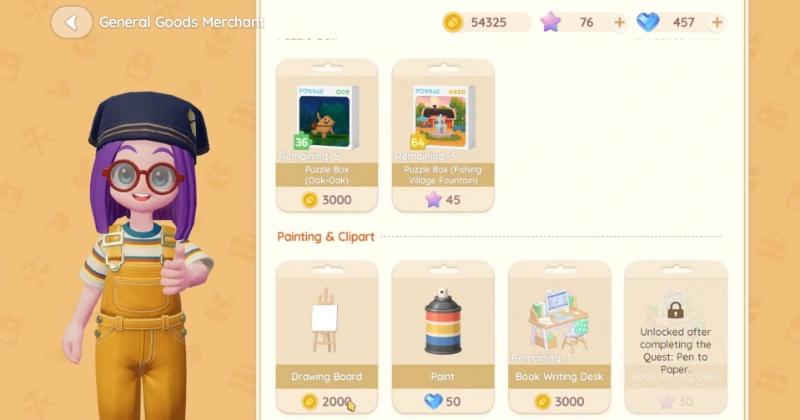
- 2Visit Ka Ching and buy the Drawing Board for a reported cost of 2,000 Gold.
- 3Place the Drawing Board, create a design, and save it.
- 4Interact with the board again and tap the middle icon above it to open the Gallery.
Painted Furniture
Requirement: Finish Brushstroke Whimsy
NPC: Ka Ching
Objective: Apply a saved design to compatible Joinery Furniture through the Workbench.
Common blocker: The furniture must be compatible, in inventory or storage, and matched to the correct saved furniture template.
Reward: Furniture painting material from the quest reward
Next unlock: After this, you can keep using the Drawing Board for furniture customization.
- 1Create and save a furniture design on the Drawing Board first.
- 2Open the Workbench and choose the painting or clip-art workflow for the furniture piece.
- 3Select compatible Joinery Furniture that is in your inventory or storage.
- 4Apply the saved design using the current painting material shown by your Workbench.
Where is the Gallery in Heartopia?
- 1Interact with the Drawing Board.
- 2Look for the three interaction icons above it.
- 3Tap the middle icon.
- 4That opens the Painting Gallery.
The Gallery is where you review saved paintings, clothing designs, furniture designs, and other design items you have already created. It is also the easiest place to check whether the design was actually saved before you go to the Workbench.
Painting tools explained
Core tools with strong support
- Brush: Draw or color directly on the template.
- Brush size: Use smaller sizes for detail and larger sizes for fills.
- Paint bucket: Fill larger areas faster before adding detail.
- Eraser: Clean up edges or remove the wrong color.
- Stamp / Clip-art: Use built-in art for furniture or decoration workflows.
- Coloring pages: Start with a guided layout instead of drawing freehand.
- Color palette: Pick colors from the current editor palette.
- Save: Save the design before you leave the board.
- Zoom: Zoom in when you need more precise placement.
Version-dependent editor features
- Grid visibility, shape tools, mirror functions, decal templates, and exact undo or redo behavior should be treated as version-dependent unless your live client shows them clearly.
- Do not rely on older guides for exact editor counts, exact undo limits, or hidden advanced color inputs without checking the current interface.
Canvas and templates
Paintings
Use the standard painting flow when you only want wall art or saved Gallery pieces. Exact available canvas ratios should be checked in your live board UI instead of copied from an older static list.
Clothing templates
Clothing designs must be created on a clothing template before they can appear in the Workbench clothing workflow.
Furniture templates
Furniture designs need the matching furniture template. If the template and furniture type do not match, the saved clip-art usually will not appear where you expect.
How to make custom clothes in Heartopia
Quick workflow
- 1Open the Drawing Board and choose a clothing template.
- 2Create the design and save it before leaving the editor.
- 3Go to the Workbench and open the Scissors workflow.
- 4Select the clothing item and apply the saved design with a Tailoring Ticket.
- 5Equip the finished piece from the Wardrobe.
Common clothing problems
- The design does not appear in the Workbench because it was not saved.
- The wrong template was used, so the design is not available for the clothing piece you want.
- A Tailoring Ticket is missing, so the design cannot be applied yet.
- The pattern looks wrong because clothing seams shift small edge details more than players expect.
Reported cost for extra Tailoring Tickets is 80 Moonlight Crystals, but treat live shop pricing as the final source of truth.
How to paint furniture in Heartopia
Current documented support points to compatible Joinery Furniture. Treat that as the safest current answer instead of assuming every furniture category supports full custom painting.
Painted Furniture quest quick fix
- 1Create a furniture design on the Drawing Board.
- 2Make sure the design uses the matching furniture template.
- 3Save the design.
- 4Open the Workbench.
- 5Select compatible Joinery Furniture.
- 6Choose the painting or clip-art option.
- 7Select the saved design.
- 8Apply it with the current furniture painting material shown in your Workbench.
Why furniture or clip-art does not show
- Use compatible Joinery Furniture, not a random placed item.
- Move the furniture into inventory or storage before opening the Workbench.
- Make sure the saved design uses the matching furniture template.
- Open the painting or clip-art option at the Workbench before choosing the saved design.
- Check the live material name in your Workbench UI before trusting old Ink wording.
Painting materials and reported costs
| Item | Current or reported cost | Use | Verification |
|---|---|---|---|
| Drawing Board | Reported 2,000 Gold | Unlock painting | Recent guides; recheck live store |
| Tailoring Ticket | Reported 80 Moonlight Crystals | Apply clothing design | Recheck live shop |
| Furniture painting material | Check current Workbench UI | Apply furniture design | Terminology varies by source |
| Dye | Reported 100 Gold | Apply a solid furniture color | Recheck live shop |
| Canvas or templates | Depends on the current design type | Paintings and saved designs | Check current board interface |
Gallery and displaying designs
Need a page focused on showing or scoring displays? Open the Exhibition Pass guide next, since painting and exhibition intent often overlap once you start saving custom designs.
Design tips that still hold up
Drawing Board and Drawing Pad troubleshooting
Painting Tools are still locked
Check D.G. Member Level 14 first, then confirm Brushstroke Whimsy has actually started before looking for later painting features.
I bought the Drawing Board but the editor does not open
Place the board first, interact with it directly, and choose the painting action. Players often search for Drawing Pad even though the in-game tool is the Drawing Board.
I cannot find the Gallery
The Gallery opens from the middle icon above the Drawing Board. It is not hidden inside a separate menu tree.
My saved clothing design is missing
Confirm the correct clothing template was used, save the design, then open the Scissors workflow at the Workbench.
Furniture is missing
Move the furniture into inventory or storage, confirm it is compatible Joinery Furniture, and make sure the saved design matches the furniture template.
I do not have the required material
Check your live Workbench and shop UI first. Current guides conflict on Ink versus Paint Can wording, so this is safer than trusting an old static term.
Painting Tools FAQ
How do I unlock Painting Tools in Heartopia?
Reach D.G. Member Level 14, start Brushstroke Whimsy with Dorothee, buy the Drawing Board from Ka Ching, and save your first design on the board.
Where do I get the Drawing Board?
Current guides place the Drawing Board at Ka Ching's General Store after the unlock quest begins, with a reported price of 2,000 Gold.
Where is the Gallery in Heartopia?
Interact with the Drawing Board and tap the middle icon above it. The Gallery is not in a normal menu.
What is the Drawing Pad in Heartopia?
Players commonly use Drawing Pad to mean the painting editor, but the in-game furniture or tool you interact with is the Drawing Board.
Why can't I paint furniture?
The most common causes are incompatible furniture, a missing saved furniture design, the wrong template, or missing painting material at the Workbench.
What furniture supports custom designs?
Current documented support points to compatible Joinery Furniture. Treat that as the safest current answer instead of assuming every furniture category supports custom art.
How do I make custom clothes?
Create and save a clothing design on the Drawing Board, then open the Scissors workflow at the Workbench and apply it with a Tailoring Ticket.
What is a Tailoring Ticket?
It is the item used to apply a saved clothing design through the Workbench. Current guides report extra tickets costing 80 Moonlight Crystals, but live shop prices should be rechecked.
What is the current furniture painting material?
Check your current Workbench UI. Newer guides often call it Paint Can, while older guides call it Ink, so the safest answer is to trust the live client.
Is there an online Heartopia painting tool?
Yes, community-made pixel-art and image-conversion tools exist on the web, but they are separate from Heartopia's in-game Drawing Board and are not official game tools.